+1 DMG FPS PC & Mobile Controls
Aim cleaner, reload smarter, and keep frames stable so +1 DMG stacking never stalls.
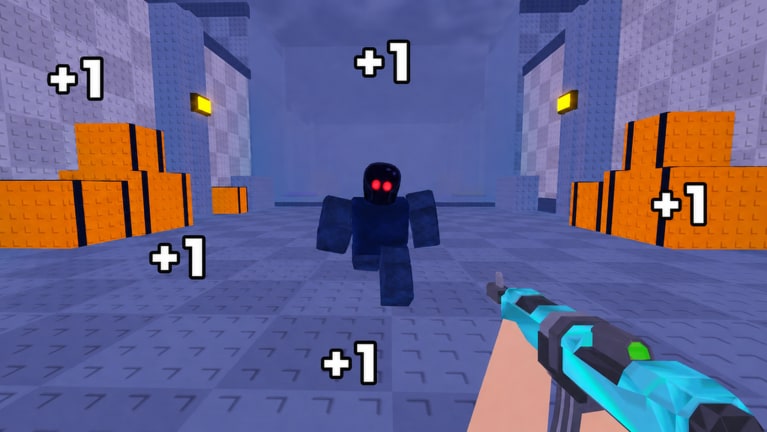
+1 DMG FPS rewards players who can keep shooting accurately. The incremental fantasy—+1 DMG per hit, medals, guns, rebirth—collapses if your aim, reload cadence, or frame rate fights you. This controls guide covers Roblox PC and Mobile habits for an FPS-style layout, sensitivity tuning, and performance checks. Pair it with Getting Started on day one and return here whenever a new gun’s recoil pattern feels wrong.
PC controls (keyboard and mouse)
Typical Roblox FPS mappings (confirm in-game if remapped):
- W A S D — move
- Mouse — look / aim
- Left click — fire
- R — reload (if the experience uses standard reload binds)
- Shift — sprint when available
- Space — jump
- Right click — aim-down-sights or zoom if the gun supports it
- Number keys / inventory hotkeys — swap tools if multiple are equipped
- Esc — Roblox menu; also the path into Settings for sensitivity and codes UI later
Because developers can customize binds, open the experience settings after each major patch such as V1.2 and verify nothing reset.
PC aim habits
- Lower sensitivity until you can track a strafing robot without constant overshoot.
- Use short mouse adjustments, not giant flicks, while the +1 stack rewards sustained hits.
- Strafe with A/D while keeping the crosshair glued to center mass.
- Reload during Buddy’s chip windows once the helper is online—see Buddy.
- For Stages BOSS, practice stop-shooting: plant feet for a burst, then move before telegraphs land.
PC performance: Shift+F5 FPS overlay
On Roblox desktop clients, Shift+F5 toggles a performance overlay that includes FPS. Use it when:
- Boss timing feels unfair (could be hitching)
- Recoil suddenly “increases” (frame drops change feel)
- You changed graphics quality
If FPS is unstable, lower graphics, close background browsers, and prefer quieter servers (cap around 16 players) while you learn a gun.
Mobile controls (touch)
Mobile HUD layouts vary, but expect:
- Left virtual joystick — move
- Right touch drag — camera / aim
- Fire button — often auto-appear while aiming or as a dedicated button
- Reload button — separate icon; do not forget it mid-boss
- Jump / crouch / sprint — side buttons depending on layout
- UI buttons — shop, Buddy, rebirth, and stage portals along the edges
Mobile-specific tips
- Increase the size or opacity of fire/reload buttons in Roblox settings if your thumb misses mid-fight.
- Favor low-recoil starter and SMG-style guns early; hard-kicking heavies are PC-friendlier until your touch aim matures (Guns Tier List).
- Play in landscape with a stable grip; claw or two-thumb—pick one and stick with it for a session.
- Disable aggressive battery savers that tank refresh rates.
- Take breaks; thermal throttling quietly destroys tracking.
Sensitivity framework (both platforms)
There is no universal perfect number. Use this loop:
- Enter a safe farm lane from Medals and Guns.
- Track the same robot type for thirty seconds.
- If you overshoot, lower sensitivity; if you cannot keep up, raise slightly.
- Test a 180° turn for panic adds—still controllable?
- Lock the value before a boss attempt.
Change one setting at a time. Changing FOV, graphics, and sensitivity together makes learning impossible.
Reload and ammo discipline
Incremental FPS players underestimate reload. Every empty click is a missed +1 stack.
- Reload when a pack dies, not when the next pack arrives.
- Count shots roughly on long boss phases.
- If a gun’s mag is tiny, it may be B-tier for you even if friends love it—tier is personal on mobile especially.
Accessibility and comfort
- Sit so elbows are free on PC; floating wrists increase shake.
- On mobile, case thickness can block edge buttons—adjust grip.
- Headphones help hear robot spawns and Buddy activity.
- Colorblind or busy HUDs: simplify graphics to make silhouettes clearer.
Controls checklist before a serious session
- Sensitivity feels stable in a warm-up lane.
- Reload bind/button is reachable without looking away.
- Buddy toggle is not buried under menus mid-fight.
- FPS overlay checked on PC if performance was shaky last session.
- You know how to open shop/rebirth without accidental presses.
How controls connect to progression
Better control raises effective DPS without spending medals. That means earlier gun breakpoints, safer boss scouts, and cleaner rebirth timing. When you do spend, pick weapons your hands can run—framework on Guns Tier List and economy on Medals and Guns. If codes ever appear, redemption UI paths are covered in How to Redeem.
Master the sticks and mouse first. The medals follow.
Frequently Asked Questions
Quick answers about +1 DMG FPS progression, codes, and updates.
What are the default PC controls?
Expect WASD movement, mouse aim, left-click fire, and R to reload in standard Roblox FPS layouts. Always confirm in the experience settings after updates.
How do I see my FPS on PC?
Toggle the Roblox performance overlay with Shift+F5 on the desktop client, then lower graphics if boss fights hitch.
What sensitivity should I use?
No single value fits everyone. Lower until you stop overshooting robots, then raise slightly until tracking feels responsive, and lock it before bosses.
Any mobile-specific advice?
Use landscape, enlarge fire/reload buttons if needed, prefer low-recoil SMG-style guns early, and watch for thermal throttling that tanks aim.
Why do my guns feel worse after a patch?
Settings may reset, FPS may drop, or a new gun’s recoil differs. Recheck sensitivity, Shift+F5 performance, and V1.2 notes before buying replacements.